AI Safety Skills for Generalists
Use Claude to get personalised, targeted guidance on finding your place in AI safety.

Claude Skills
Skills are structured knowledge files that give Claude reliable, current context on the AI safety field. We have developed four Claude skills to help generalists get guidance on transitioning into AI safety.
AI Safety 101
Understand the AI safety landscape — key concepts, subfields, organisations, narratives and talent needsWhen to use: When you want to develop an informed view of the AI safety landscape.AI Safety Career Paths
Maps your existing skills onto realistic AI safety roles.When to use: Working out where your background actually fits.AI Safety Learning Paths
Personalised guidance on courses, fellowships, and self-study.When to use: You've picked a direction and want a concrete upskilling plan.AI Safety Funding
A guide to funding for projects, independent research, and career transitions.When to use: You need financial support for a project or career transition.
These skills are designed to work together, but you can download and use individual skills as needed.
How to add a skill to Claude
Step 1 — Download the skills
📁 Click on this link and scroll to the Assets section to download the skills - AI Safety Skills
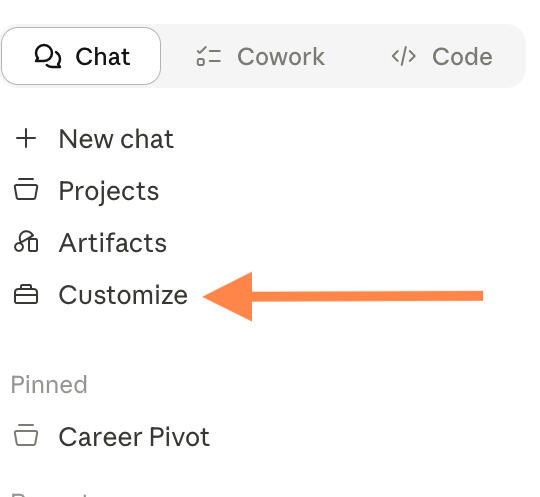
Step 2 — Open Claude → Customize
⚙ In Claude, on the left hand side column, open Customize. You can also find this in Settings (sometimes labelled Skills or Features).
Step 3 — Add the skill
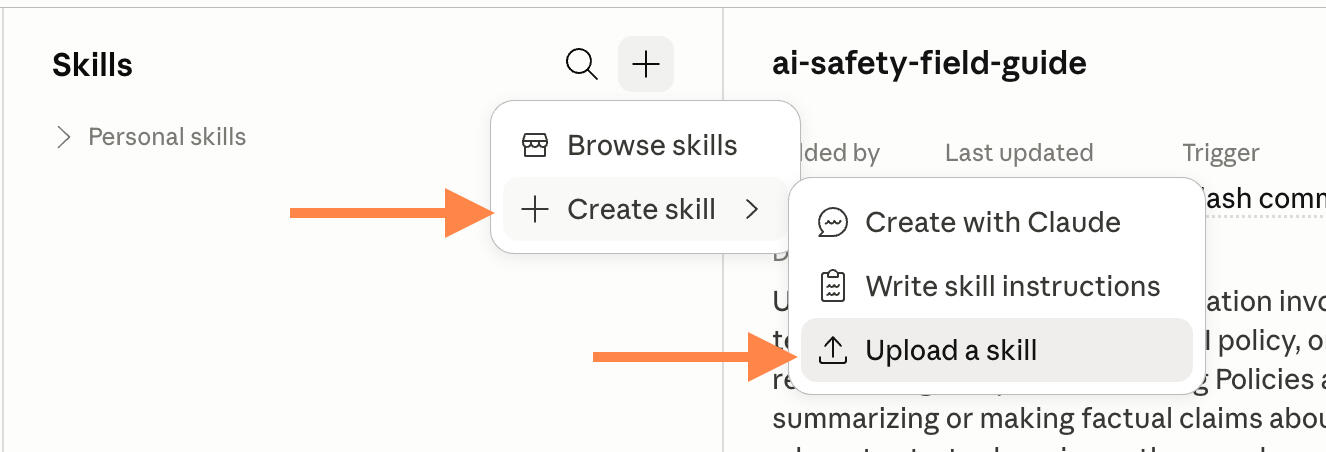
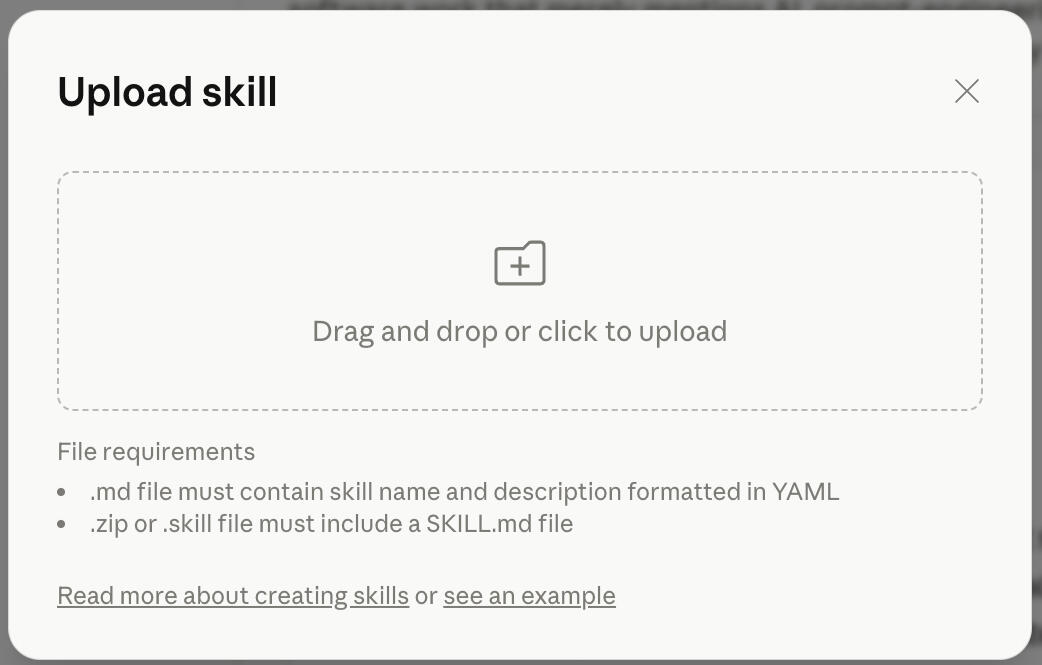
➕Find the + in the corner, Choose Create skill -> Upload a skill, then select the downloaded skill file from Step 1.If you don't see the + icon, go to Settings -> Capabilities and turn on the 'Code and file creation' setting.
Step 4 — Start a new chat and try it
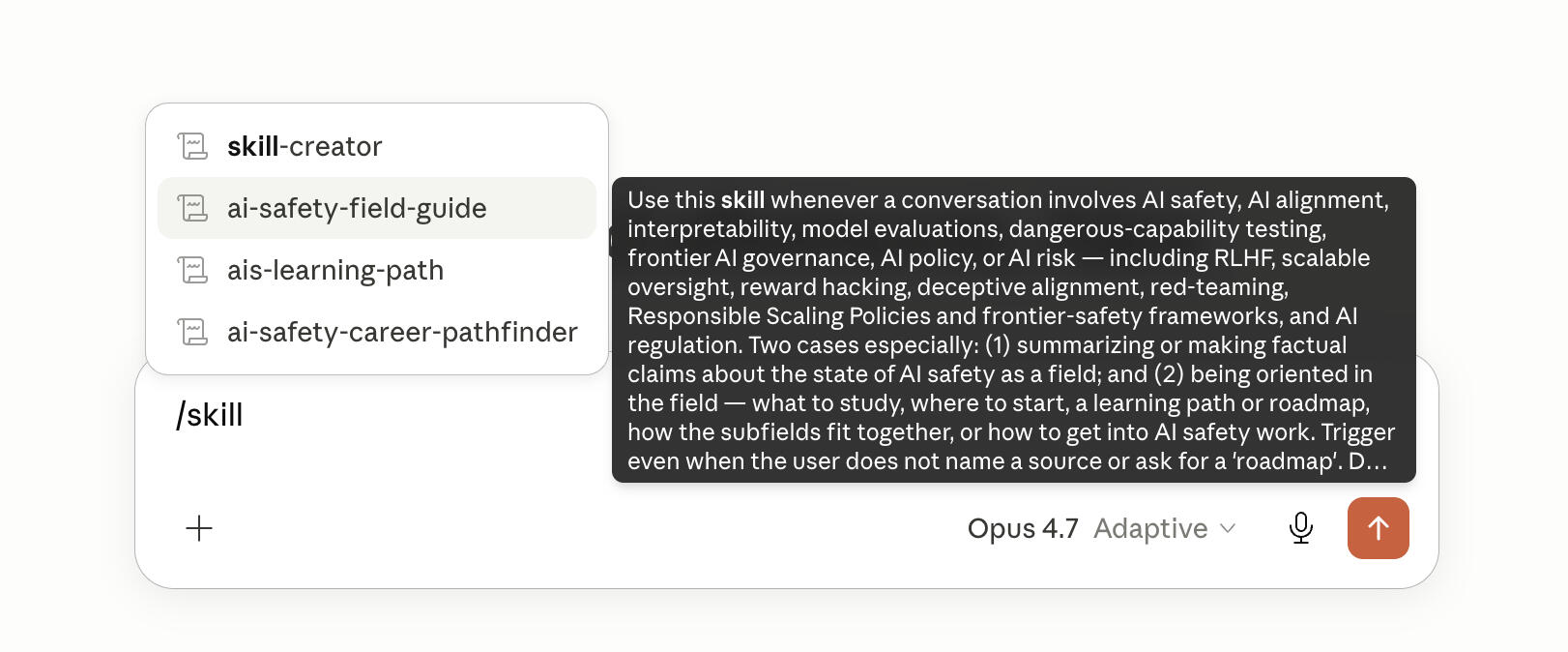
💬 Open a new conversation and prompt Claude with your AI safety question. For e.g., "Help me think through an AI safety career path." The relevant skill will trigger based on your prompt.Or you can type /skill and select the skill you want to use.
On mobile? Save these for later.Claude skills are added through Claude on a computer, so you'll need a desktop or laptop to set them up.
Developed as part of LISA's AI Studio program by Alex Borwick, Jaspreet Singh and Seti Arabshahi